Directions Panel Field
Introduction
The Directions Panel Field is an optional visual companion for a Directions Field. It displays the step-by-step instructions supplied by a routed directions result.
Available in: Pro and Agency.
The panel does not calculate a route, accept visitor input, or save an independent submission value. Google Routes API requirements and travel settings come from the connected Directions Field.
Configuring the Directions Panel Field
The Directions Panel Field has no custom geolocation settings of its own. Add it to the form, then open the source Directions Field and select the panel under Directions Panel Output in Display Options.
On forms with more than one Directions workflow, add a separate panel for each result that should remain visible independently.
Setting Up and Using the Directions Panel Field
- Add and configure a Directions Field with an origin and destination.
- Add a Directions Panel Field where the instructions should appear.
- Open the Directions Field's Display Options.
- Select the panel under Directions Panel Output.
- Save the form and calculate a Google Routes API route on the frontend.
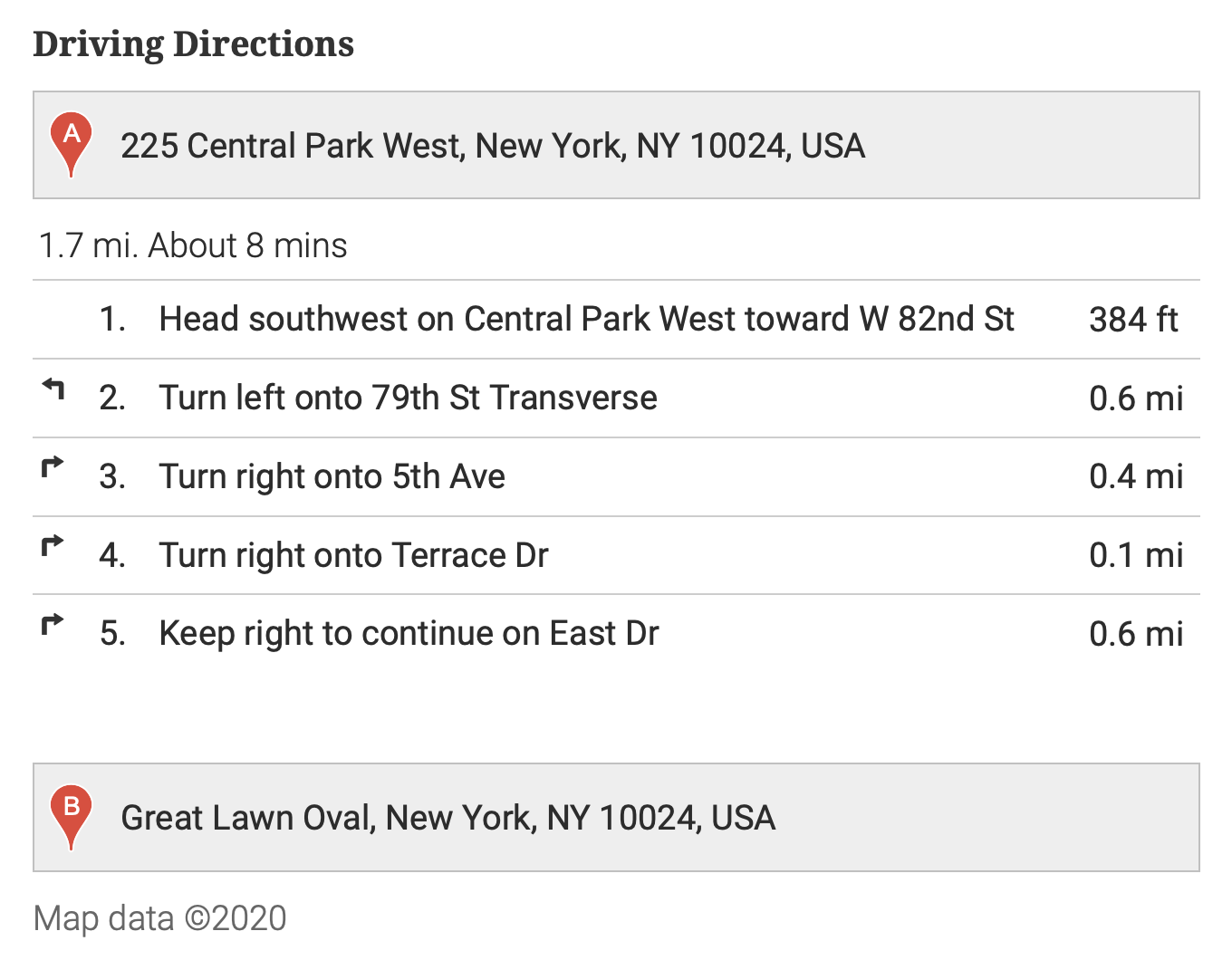
When the Directions Field also draws the route on a Map Field, the panel and map can present the same route together, including supported step interactions.
Saved Value and Outputs
The Directions Panel is a UI-only field and stores no independent submission value. Legacy stored panel output is intentionally deprecated.
Use the connected Directions Field for saved travel data, submission output, merge tags, dynamic values, and integrations.
Troubleshooting
The panel remains empty
Confirm that this panel is selected under Directions Panel Output in the source Directions Field and that a Google Routes API calculation completes successfully. A straight-line calculation does not provide turn-by-turn road steps.
The wrong panel receives the route
Open the source Directions Field and review its Directions Panel Output selection. Use separate panels when the form has multiple independent Directions Fields.
The panel is present but no route is calculated
The panel is display-only. Check the Directions Field's origin, destination, trigger mode, Routes API configuration, and route options.