Drawing Tools & Shape Fields for Ninja Forms
Draw service areas, delivery zones, property boundaries, lines, and custom map regions directly inside your Ninja Forms.

Why Use Drawing Tools?
Create, manage, and analyze custom map regions directly inside Ninja Forms
Ideal For
- Service area businesses
- Delivery zones
- Property boundaries
- Real estate applications
- Territory management
What it Can Do
- Draw custom regions
- Calculate area and distance
- Export GeoJSON data
- Display labels and colors
- Power advanced geolocation workflows
Draw, Edit & Manage Shapes
Create and manage map-based shapes directly inside your Ninja Forms
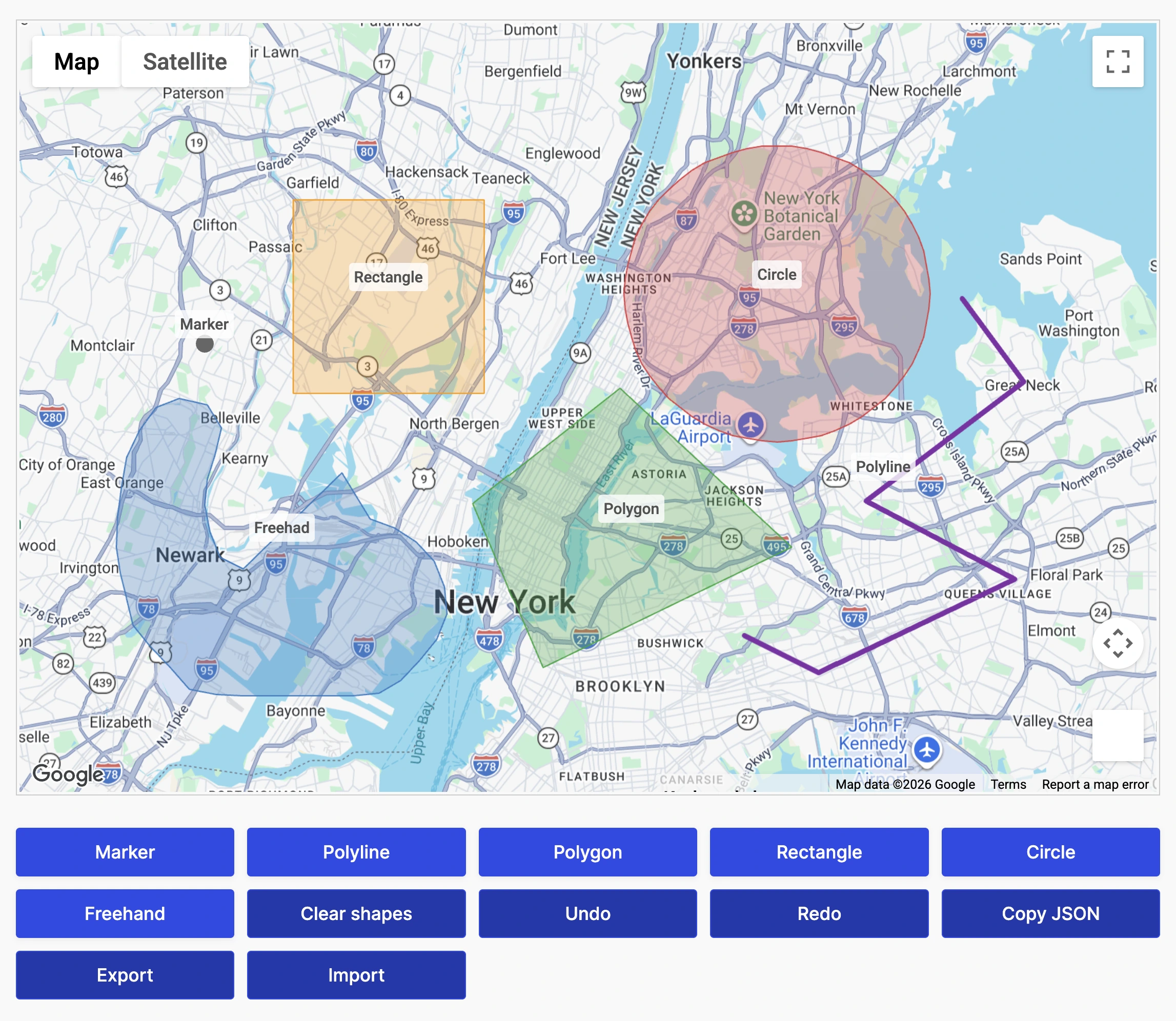
Multiple Shape Types
Draw markers, polylines, polygons, rectangles, circles, and freehand shapes directly on interactive maps.
Full Shape Editing
Multi-Shape Support
Draw and manage multiple independent shapes within the same form.
Built-In Shape Management
Undo, redo, clear, import, and export shapes using built-in drawing tools.
Submission Data Storage
Save shape data with every Ninja Forms submission for automation, reporting, and custom workflows.
Live Measurements & Shape Analytics
Calculate measurements and shape information automatically while users draw
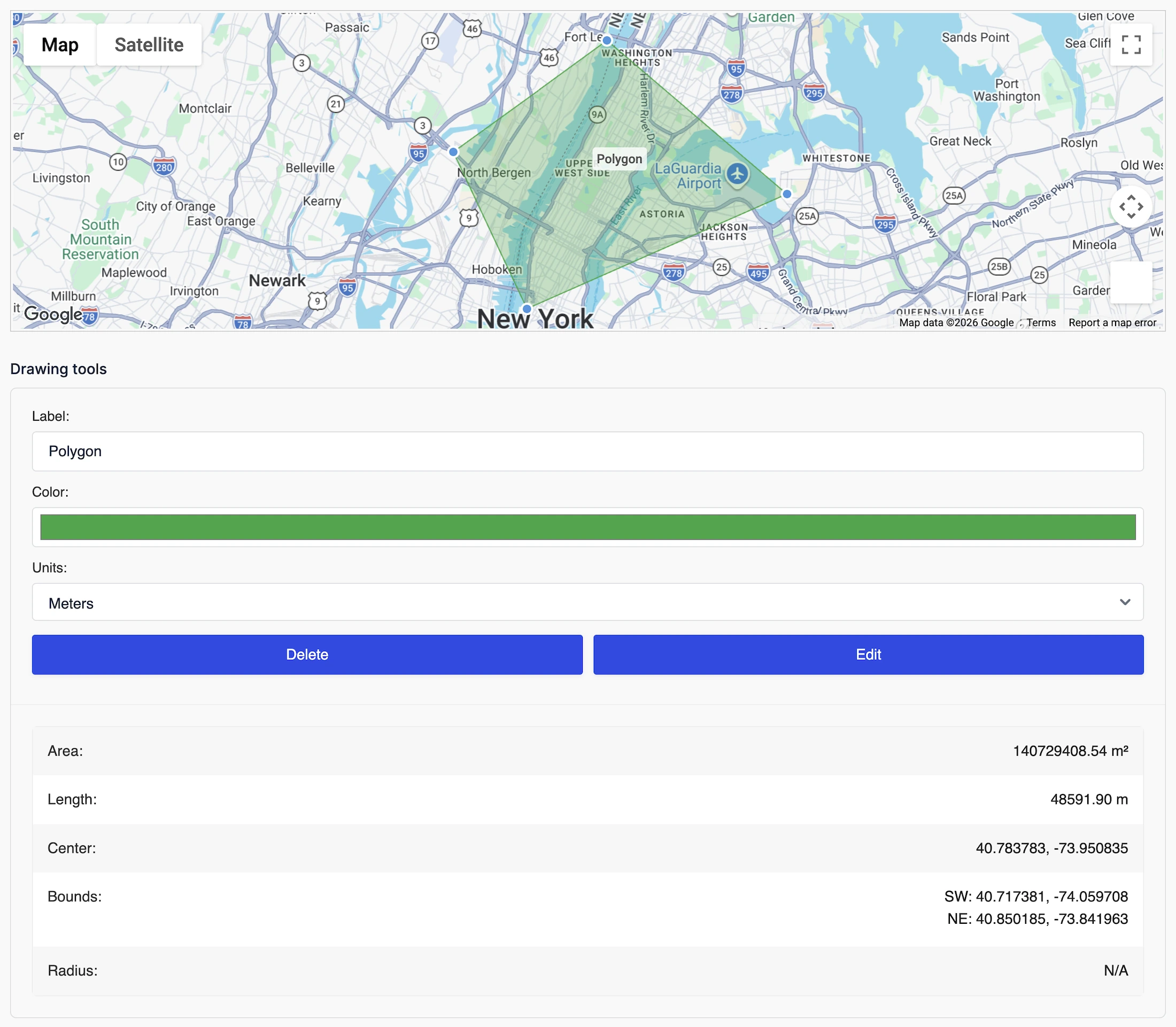
Real-Time Area Calculations
Automatically calculate polygon, rectangle, and circle areas as shapes are created.
Length & Perimeter Measurements
Shape Statistics
Store measurements, geometry, labels, and other shape information with each submission.
Bounding Coordinates
Capture shape centers, bounds, and coordinates for advanced workflows.
GeoJSON Support
Export and store GeoJSON data for integrations and custom applications.
Shape Styling & Customization
Customize how drawing tools and shapes behave on your maps
Flexible Drawing Interface
Display drawing tools as buttons or toolbar icons and choose where they appear.
Custom Shape Colors
Shape Labels
Label shapes to make regions easier to identify and manage.
Editing Controls
Control whether shapes can be edited, resized, dragged, or deleted.
GeoJSON Import & Export
Import existing shapes or export completed drawings for reuse.
Service Areas, Delivery Zones & Boundaries
Build advanced location workflows using custom map regions inside Ninja Forms
Delivery Zones
Define exactly where deliveries or services are available.
Service Areas
Property Boundaries
Outline parcels, inspection zones, and geographic regions directly on the map.
Geographic Validation
Store shape data for custom validation, conditional workflows, or integrations.
Workflow Integration
Store shape data with submissions for automation, reporting, and integrations.
Built for Service Areas, Territories & Custom Regions
Capture, manage, and analyze custom map regions directly inside Ninja Forms.
Multiple Shape Types
Support markers, polygons, circles, rectangles, polylines, and freehand drawing.
GeoJSON Support
Import, export, and preload custom shapes using GeoJSON data.
Live Measurements
Calculate area, perimeter, length, and shape statistics automatically.
Shape Management
Edit, resize, drag, label, and organize shapes with built-in tools.
Interactive Maps
Draw and manage shapes directly inside interactive Google Maps.
Native Ninja Forms Integration
Works seamlessly with conditional logic, calculations, notifications, and custom workflows.
Frequently Asked Questions
What are Drawing Tools for Ninja Forms?
Drawing Tools let users draw polygons, circles, rectangles, markers, and freehand shapes directly on Google Maps inside Ninja Forms.
What shapes can users draw?
Users can create polygons, circles, rectangles, markers, polylines, and freehand shapes depending on your form configuration.
Can users edit or remove shapes?
Yes. Shapes can be resized, moved, edited, deleted, undone, or redone before the form is submitted.
Can I save drawn shapes with the form submission?
Yes. Shape geometry, measurements, coordinates, labels, and other metadata can be stored together with the Ninja Forms submission.
Can I import or export shapes?
Yes. Drawing Tools support GeoJSON import and export, making it easy to reuse predefined regions or integrate with external applications.
What are common use cases?
Drawing Tools are ideal for delivery zones, service areas, property boundaries, inspection regions, utility planning, construction sites, event layouts, and territory management.
Do I need a Google Maps API key?
Yes. A Google Maps Platform API key is required to use interactive maps functionality.